Premium
only the alerts you asked for
Tracking a lot of stores creates the opposite problem. A busy retailer lists dozens of products a day and almost none of them are the one you are waiting for, so the notifications stop meaning anything and you start ignoring them.
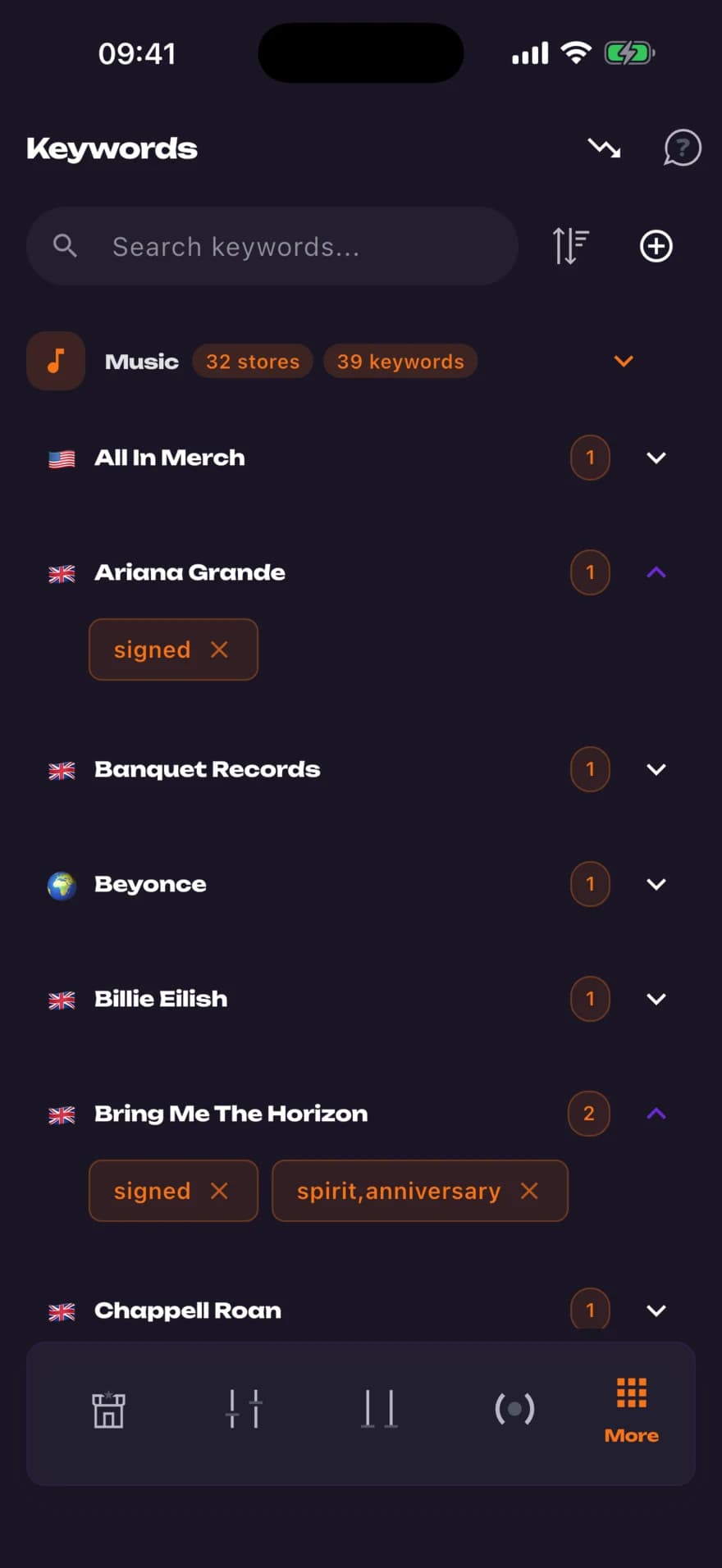
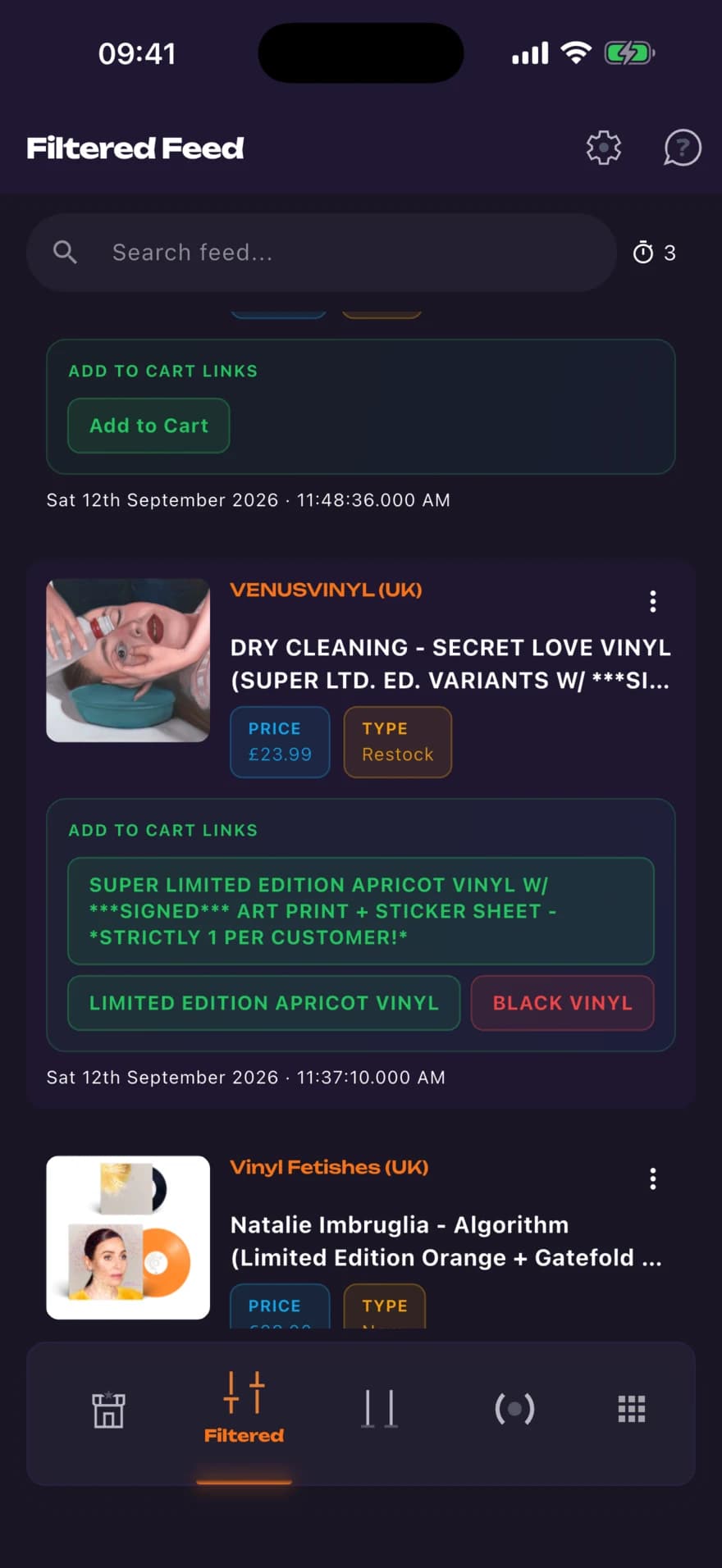
Keywords fix that by narrowing what counts as an alert. Set them per store, so a card shop can watch for booster box while an artist store watches for signed, and the Filtered feed only ever shows matches.
how it works
- 01
Add keywords to a store
Keywords are set per store, so each shop can watch for something different.
- 02
Matches go to the Filtered feed
A separate feed from the unfiltered one, so you can still browse everything when you want to.
- 03
Notifications follow the filter
You are only interrupted when something matches, instead of every time a store lists anything.
why it matters
Per store, not global
A keyword set on a card shop doesn't fire on an artist store, which is what keeps the filter usable across a long store list.
Start broad, then cut
Run a wide keyword for a week to learn what each store actually lists, then narrow it to what is worth an interruption.
Product type beats product name
Terms like signed or booster,box keep working across every release. Specific titles go stale in months.
questions
Are keywords per store or across everything?
Per store. Each store you track has its own keyword list, which is what keeps alerts relevant when you're watching a lot of shops.
Is the Filtered feed available on the free tier?
No. Free accounts get every feed except Filtered. Keyword filtering is the feature that turns a wide store list into something you can live with.
How many keywords can I set?
There's no practical limit on Premium. Most people run a handful per store, not a long list, because a long list recreates the problem.
Do keywords affect the unfiltered feed?
No. The unfiltered feed still shows everything from your stores, so you can browse when you want and be interrupted only on a match.
the rest of it
Developed for mobile:

